





 2026-02-13
in
2026-02-13
in

 6 min read
As I ramp up my Portuguese language learning I want to start writing in it more as well. That is beyond the stuff I’m doing in my language apps and in my classes. For both of those I am basically using the iOS Portuguese/English combined keyboard or hand writing the lesson homework out. When on a Mac I can use the same techniques that I had back when I studied Spanish several decades ago, which go back to the 1980s. How to type foreign characters, accent marks on letters, et cetera on my Linux machine (my primary desktop) was less clear to me. I was originally thinking of switching to a Portuguese key layout but since I mostly type with Dvorak and there is only a standard QWERTY-like layout that seemed less practical. I therefore wondered if there was something like the Mac equivalent of using key sequences to get custom characters. The answer is a big yes!
The Compose Key
Linux desktops have the concept of the “compose” key . This is a concept invented by DEC in the early-1980s that percolated throughout the UNIX and Linux ecosystems. It allows a user to press a key then a series of key sequences to achieve custom characters. Unlike on Mac where it is a key-combination sequence, the keys are pressed in sequence one after the other. For example lets say one wanted to add an accent mark to the letter “a”: á. On a Mac you would press the key combination Option-e (all together) and then type “a”. On Linux you hit the Compose Key, then you type an apostrophe, then you type an “a”. In some ways it is easier because you don’t have to do a key-combination at any point, for the simpler symbols anyway. It also makes things a lot more flexible because you can have any combination of characters after the Compose Key press. According to this FreeDesktop Compose Sequence reference there are over 5000 characters that can be generated this way. To keep it simple I’ll just list the ones that are relevant to Portuguese:
| Type | Sequence | Example |
|---|---|---|
| Accent on character | Compose + ’ + letter | á |
| Forward accent on letter | Compose + ` + letter | à |
| Tilde on character | Compose + ~ + letter | ã |
| Circumflex (“Hat”) on character | Compose + ^ + letter | ê |
| C with cedilla (“tail) | Compose + , + c (upper or lower) | ç |
| Left angle quote | Compose + < + < | « |
| Right angle quote | Compose + > + > | » |
The big hiccup is that by default, on US keyboards anyway, the Compose key isn’t activated. Each of the Linux desktops activate the compose key in slightly different ways. On all but one it boils down to going into the correct control panel for your desktop, enabling the key, and setting which key you want to be the Compose key from a subset of options. It’s pretty straight forward but I’ve provide a quick tutorial for several of the major desktops.
Setting the Compose Key
GNOME
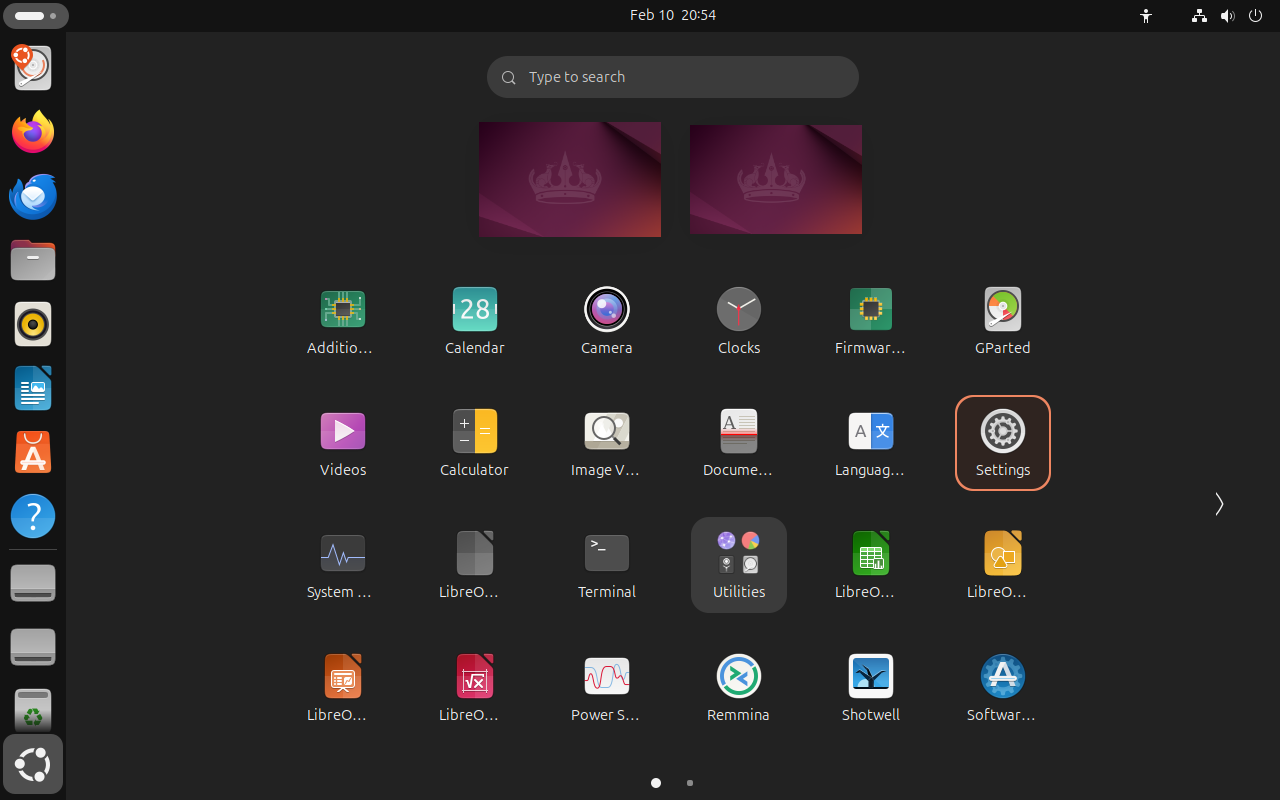
Open the App menu (lower left corner icon) and then open the Settings app
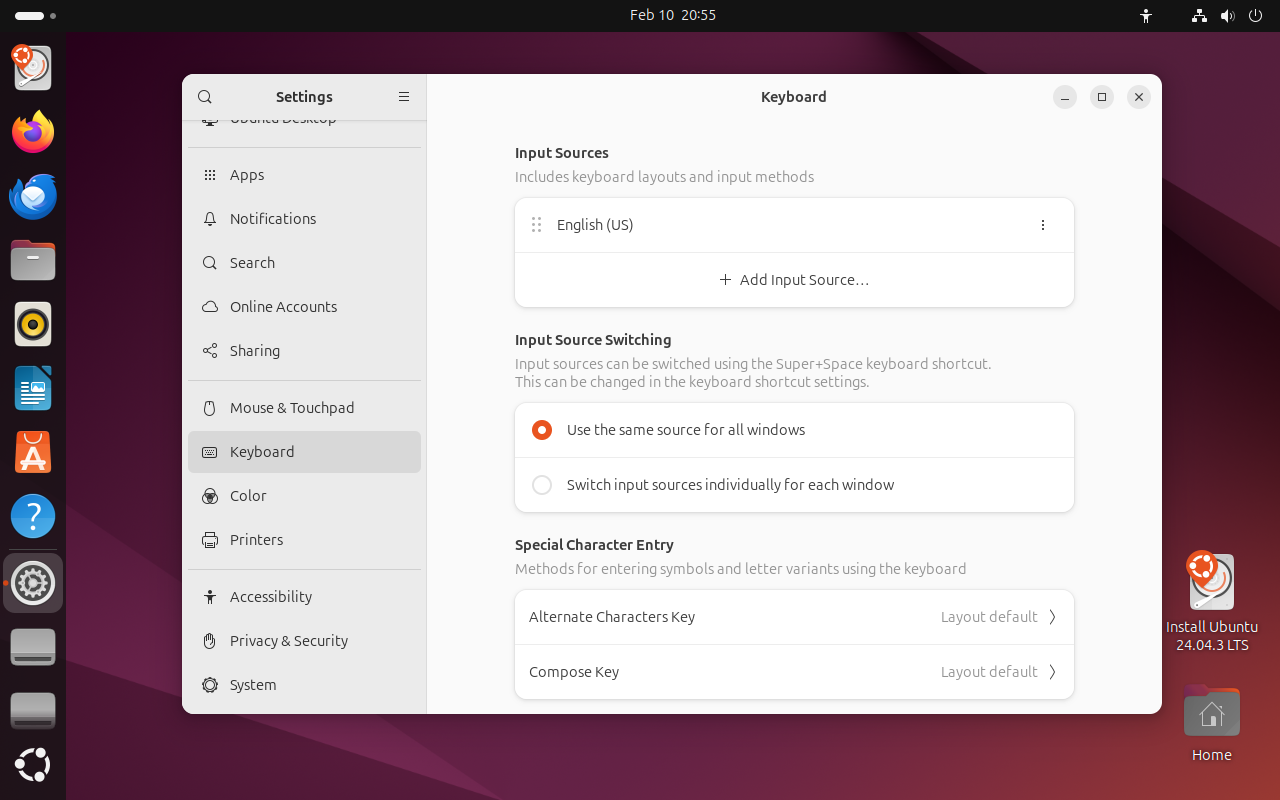
Scroll down to and highlight the Keyboard settings panel. Then click on the “Compose Key” option
Toggle the “Use layout default” off and then select which key you would like to use as your Compose key.
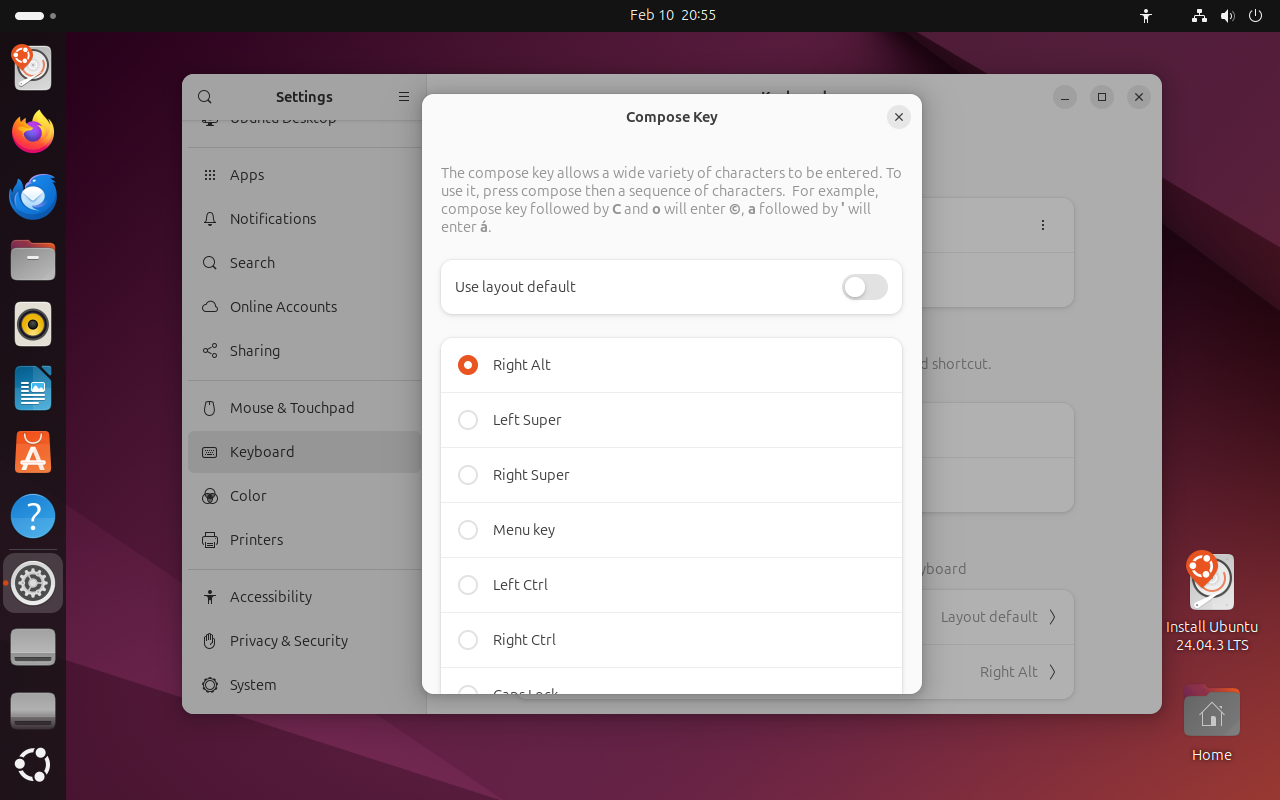
After this all your apps should now support the Compose key without requiring you to logout, restart, et cetera.
KDE
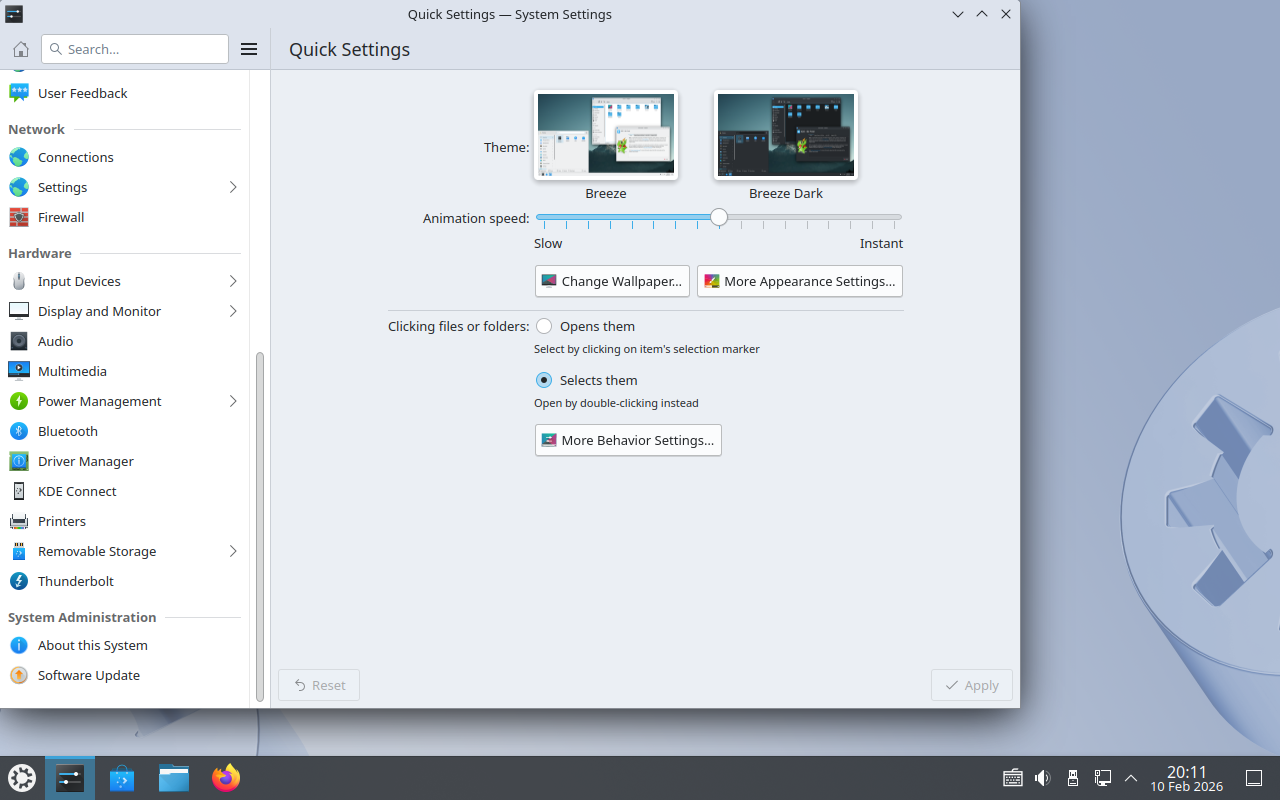
Open KDE menu and navigate to the “System Settings” application. Open it.
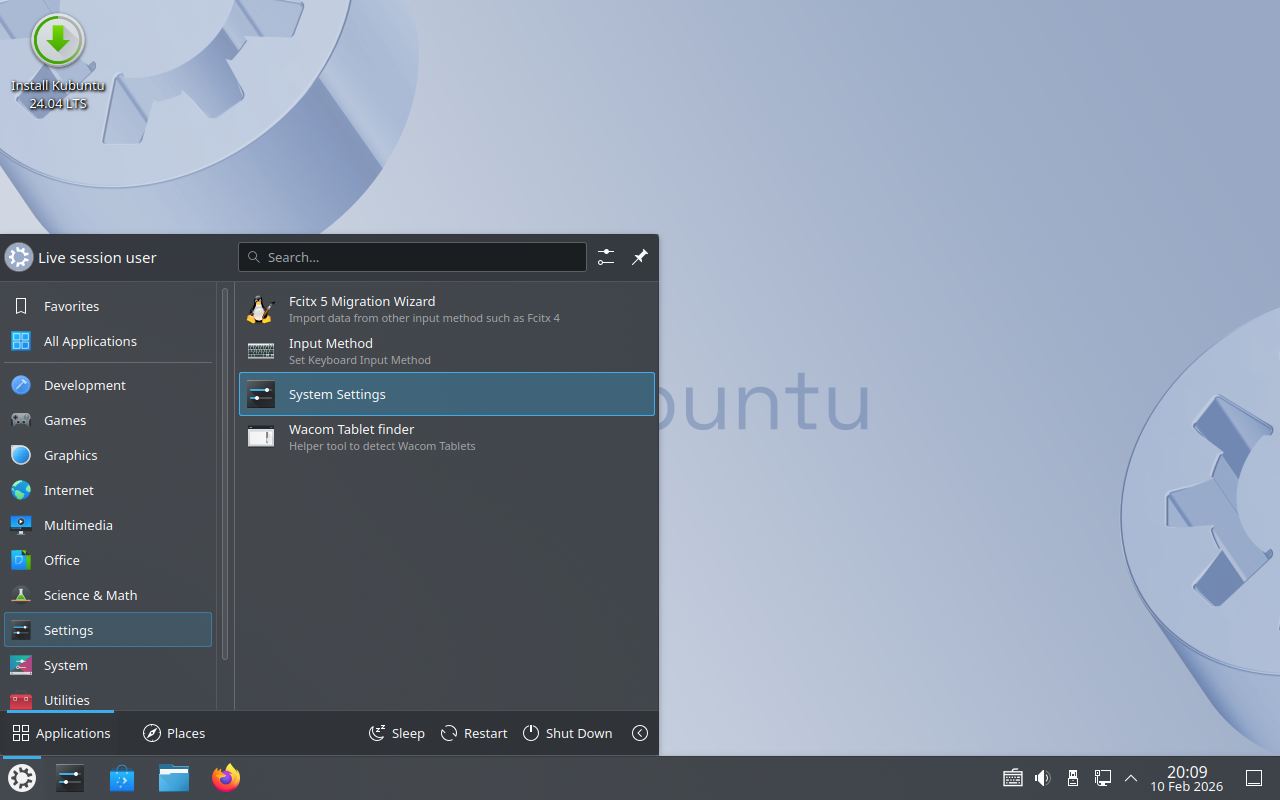
Navigate down to the “Hardware” -> “Input Devices” option and select it.
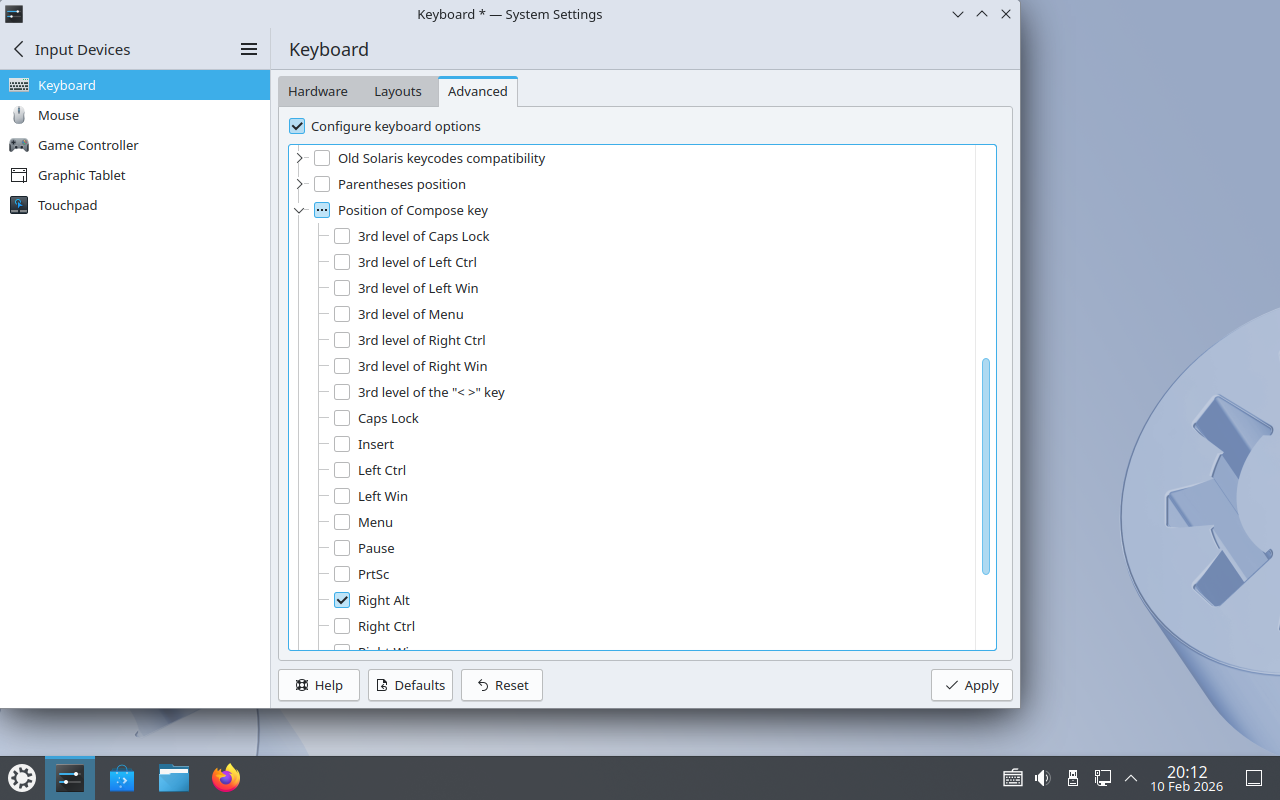
The keyboard panel should be open first. If not, select it. Then go the Advanced tab. In the Advanced tab scroll down to the “Position of Compose key” option. Expand that option and select which key you wish to use as your compose key.
After this all your apps should now support the Compose key without requiring you to logout, restart, et cetera.
MATE
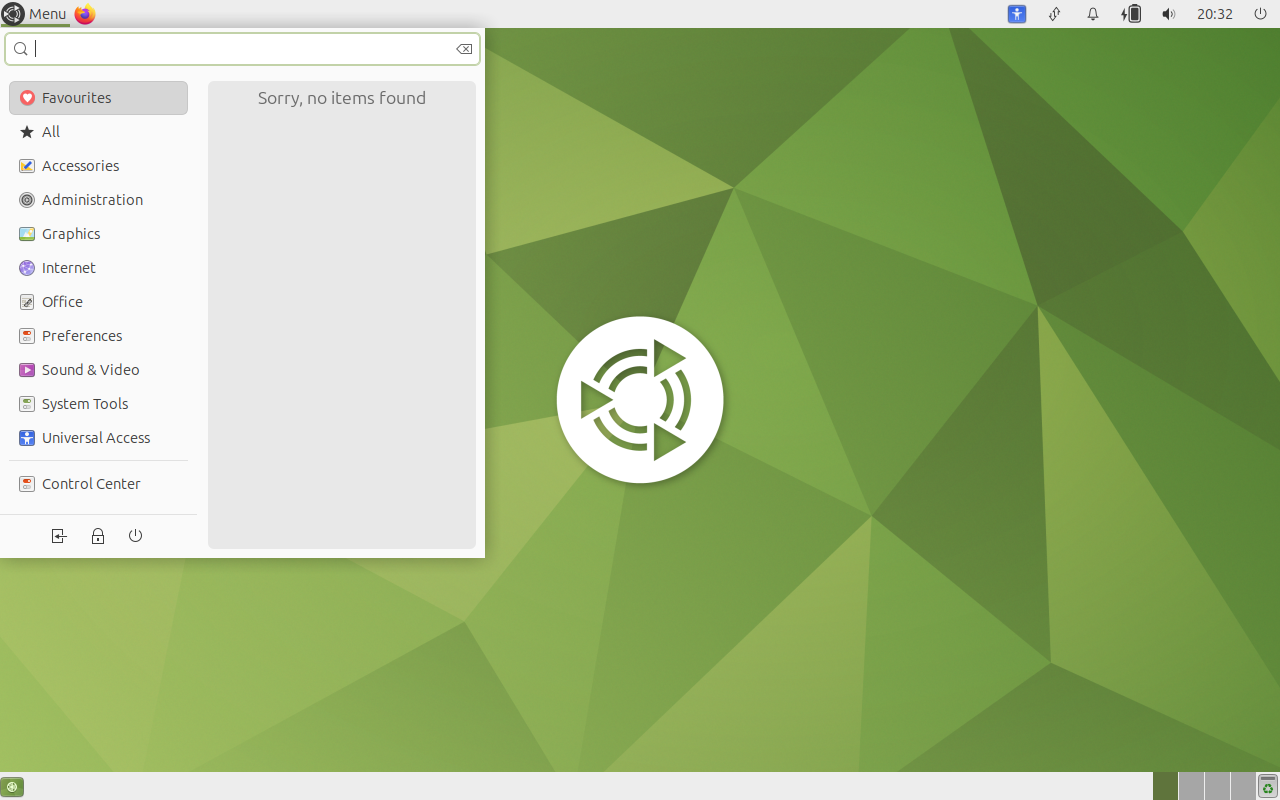
From the main menu open the MATE Control Center app (bottom of menu on left).
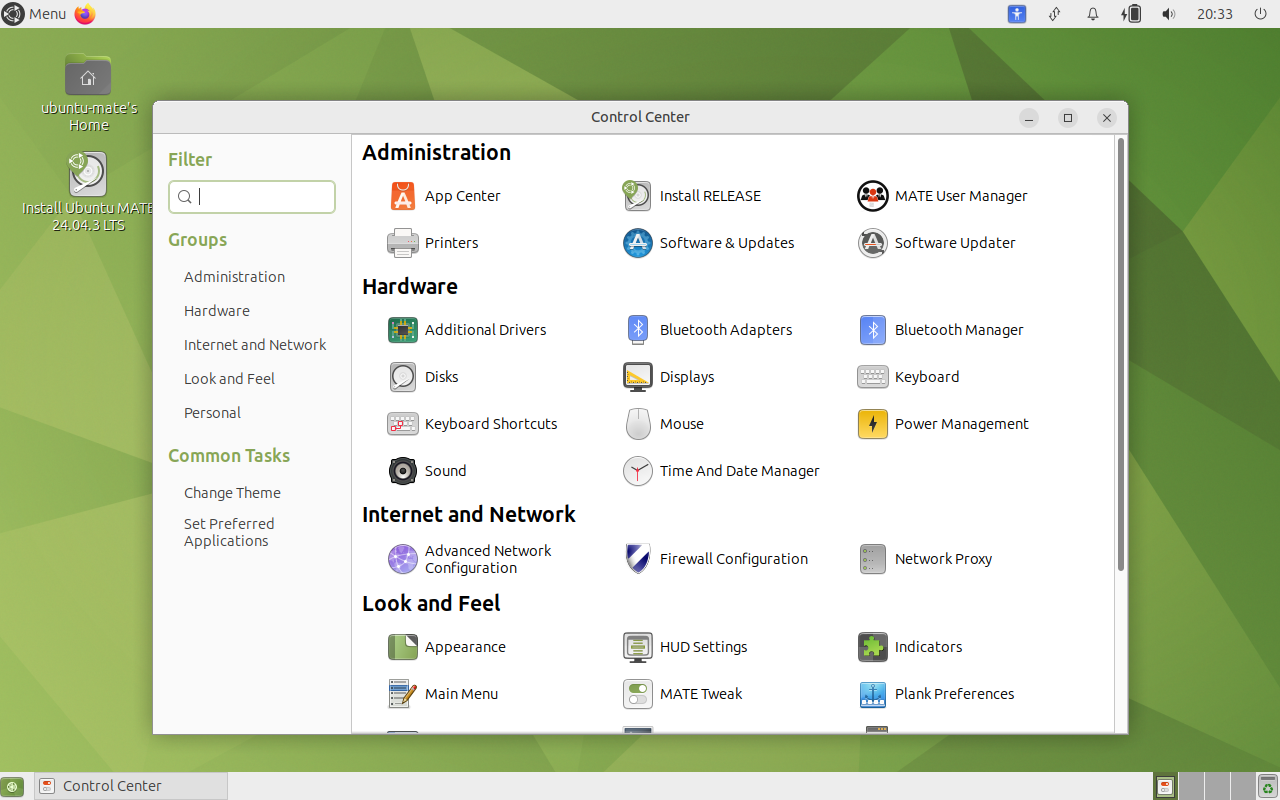
In the Control Center app select the Keyboard Preferences icon.
From the Keyboard Preferences app hit the “Options…” button to bring up additional keyboard options
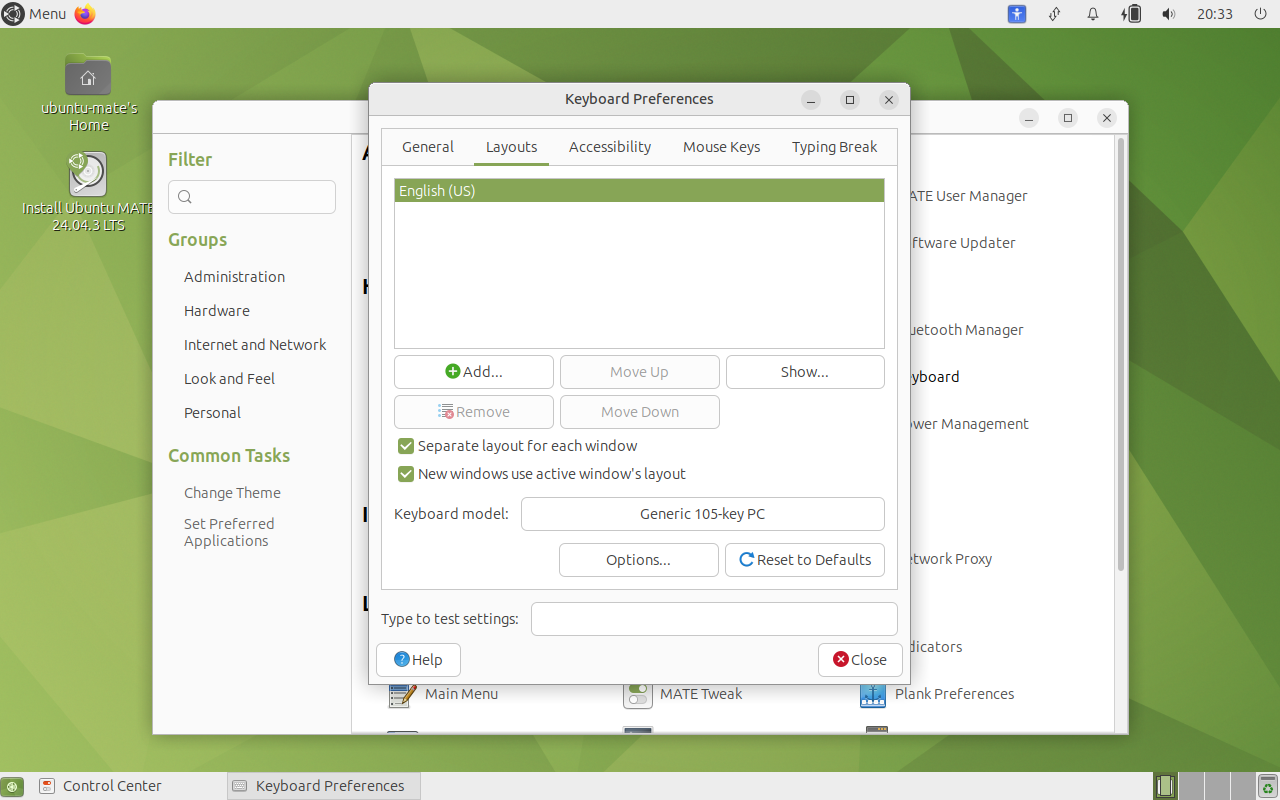
In keyboard options window scroll down to the “Position of Compose key” option. Expand that option and select which key you wish to use as your compose key.
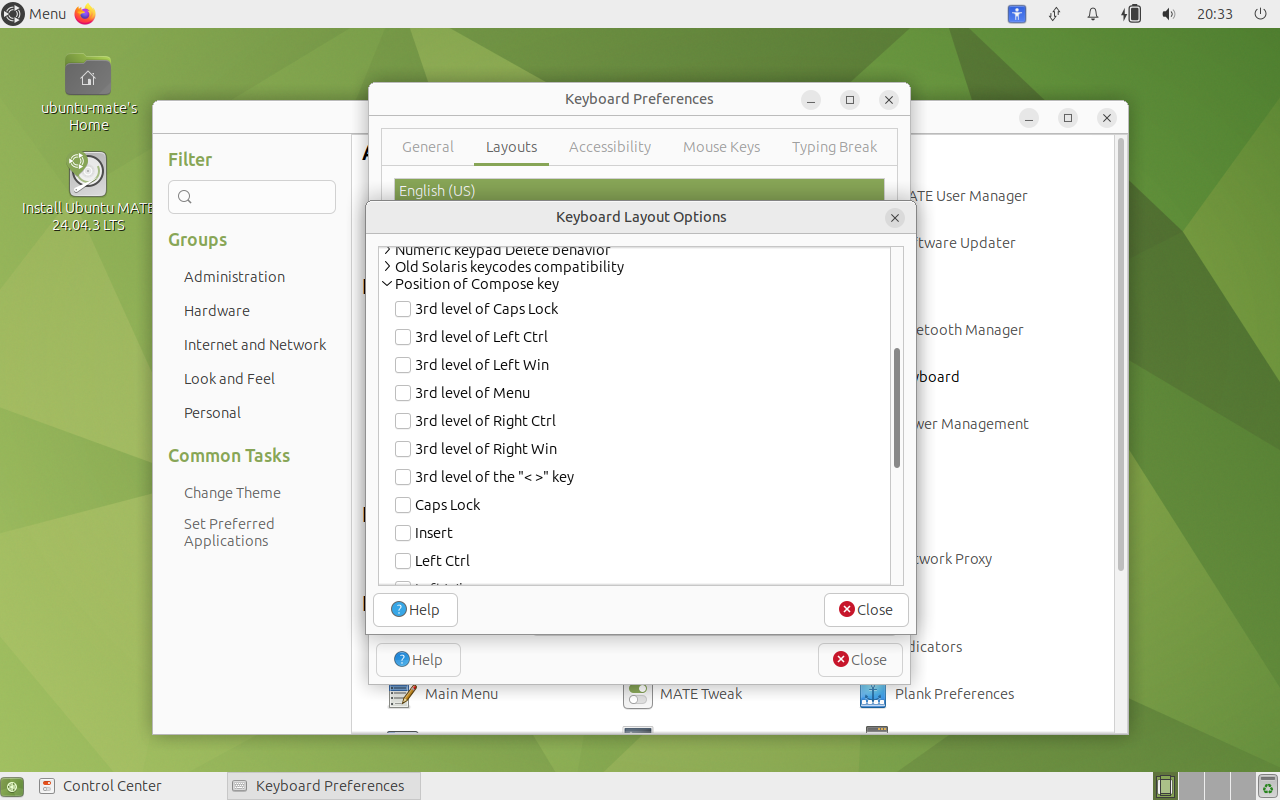
After this all your apps should now support the Compose key without requiring you to logout, restart, et cetera.
Cinnamon
From the main menu open the Settings section and select the Keyboard option
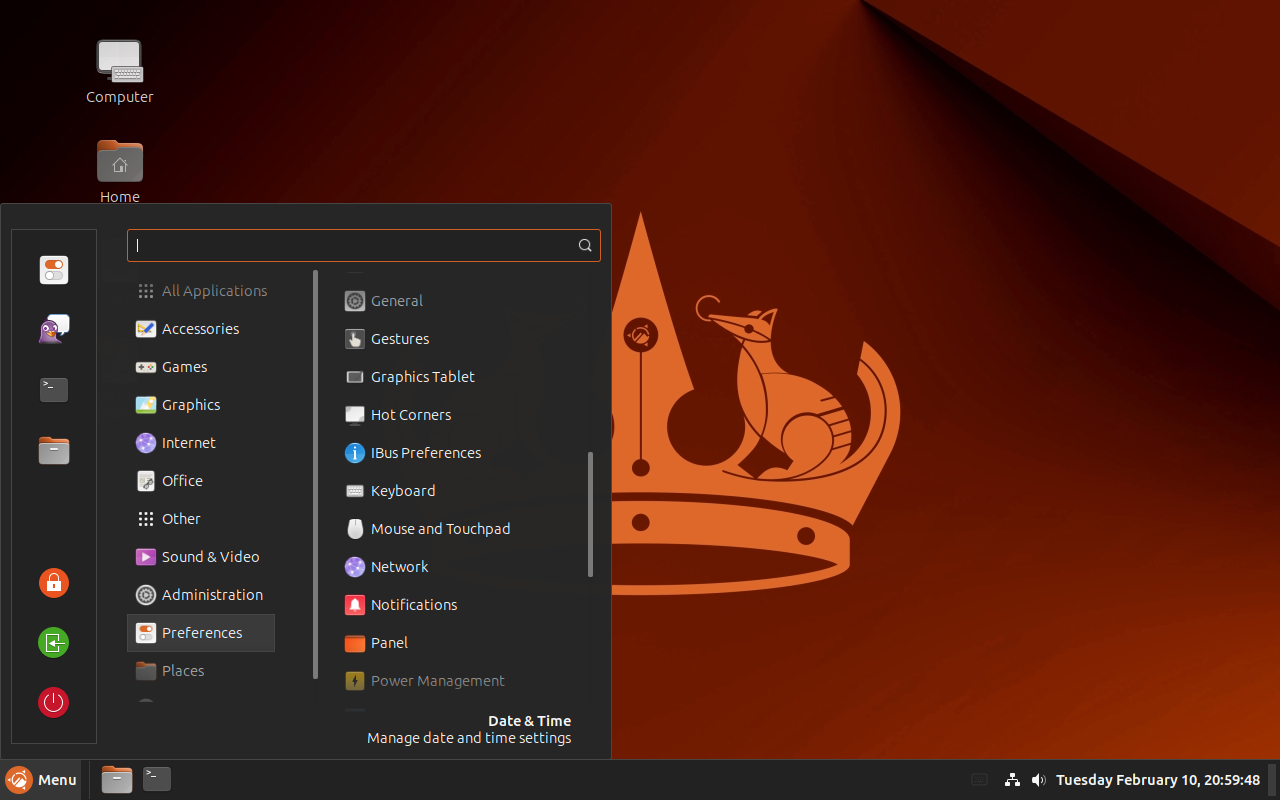
From the Keyboard Preferences app navigate to the “Layouts” tab. Once there hit the “Options…” button to bring up additional keyboard options
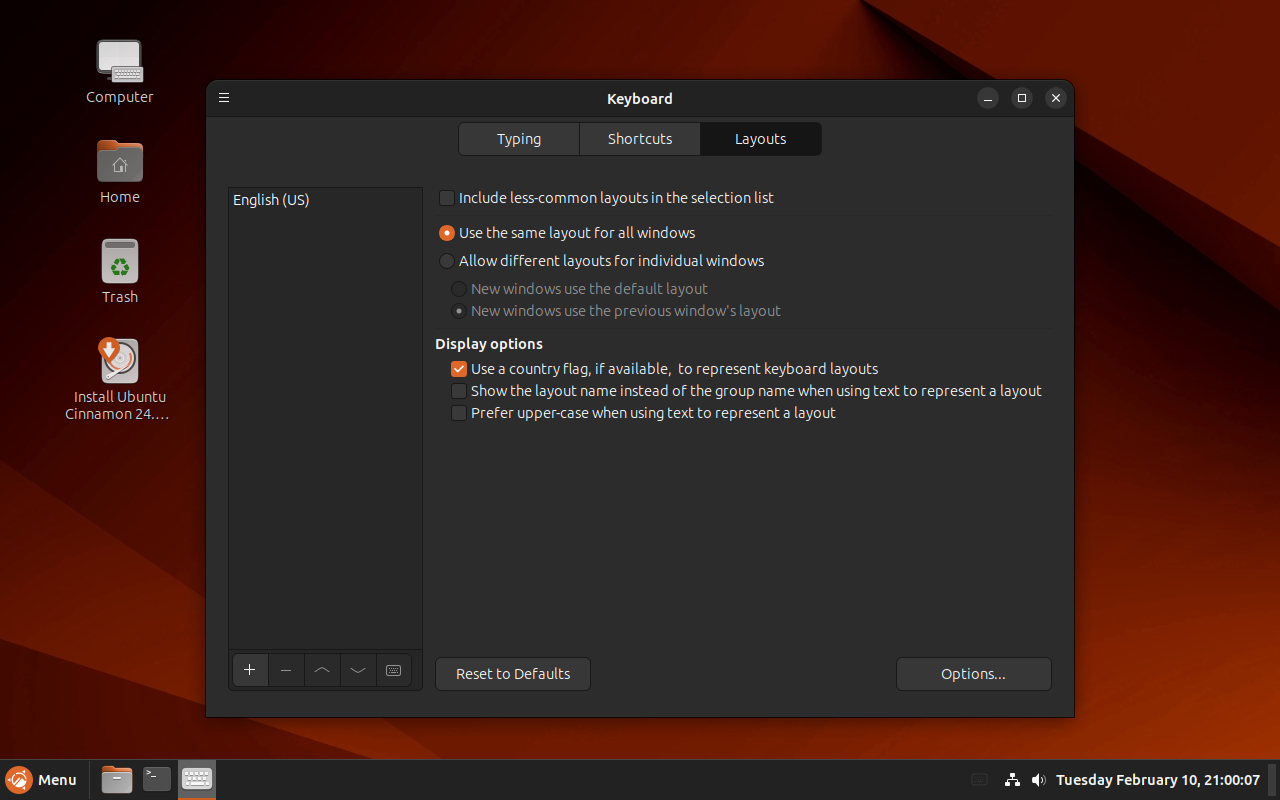
In keyboard options window scroll down to the “Position of Compose key” option. Expand that option and select which key you wish to use as your compose key.
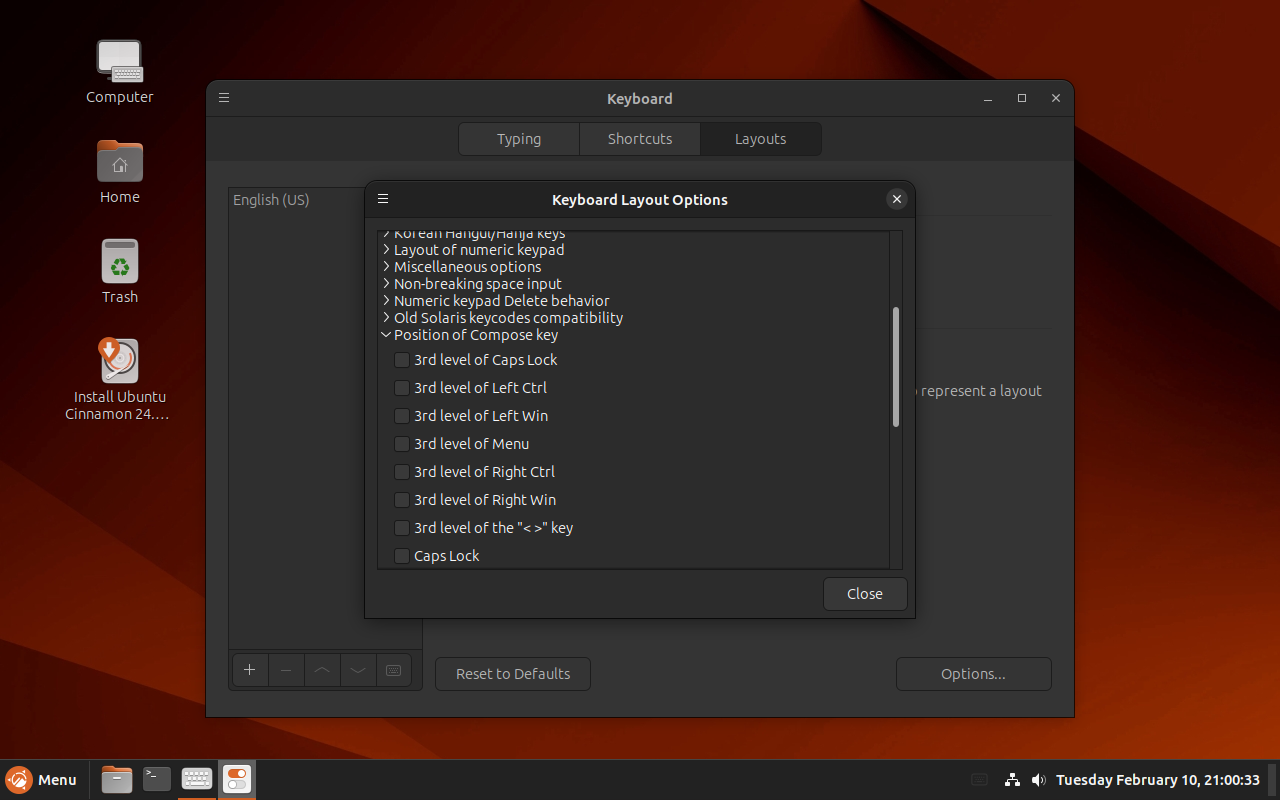
After this all your apps should now support the Compose key without requiring you to logout, restart, et cetera.
ElementaryOS
From the dock click on the System Settings icon (one with the gears) to bring up the System Settings app.
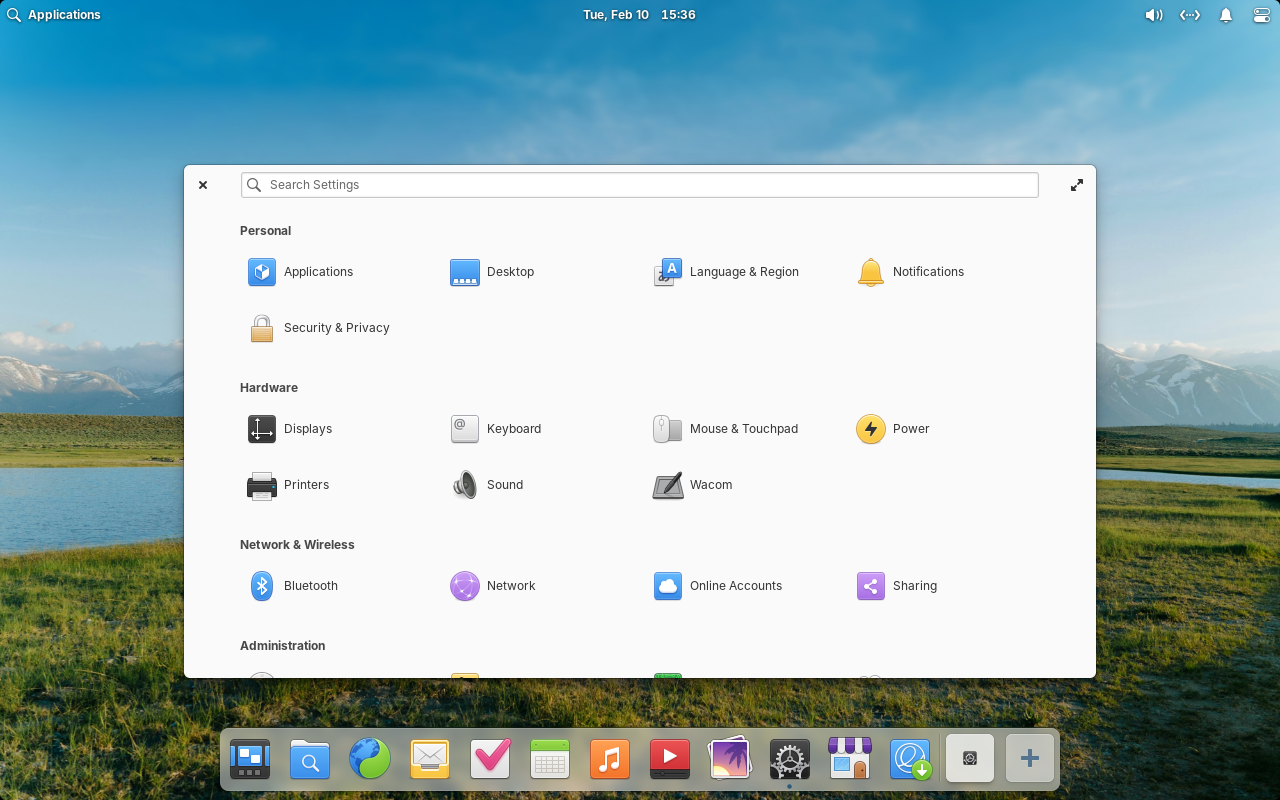
In the System Settings app select the keyboard option.
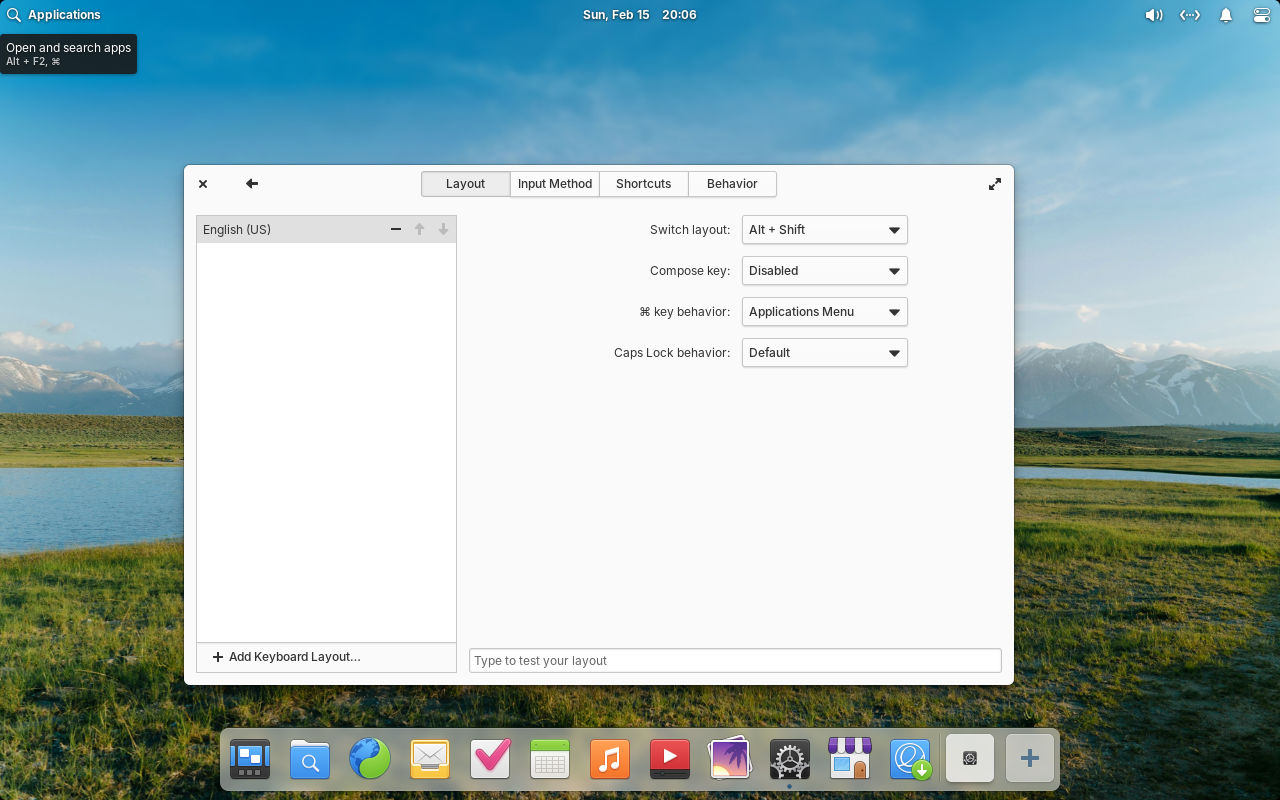
In the Keyboard App select the Compose Key option you desire from the drop down menu.
Budgie
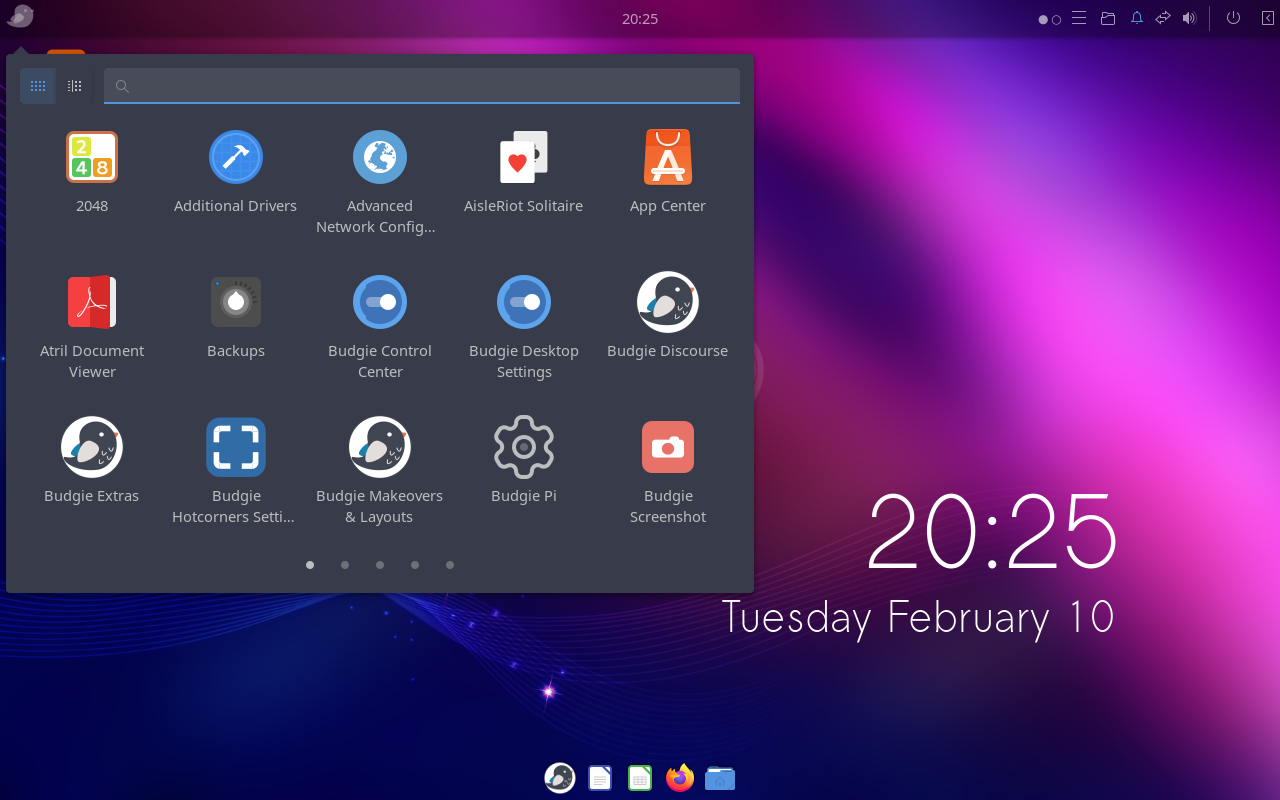
Open the App menu (upper right corner icon) and then open the Control Center app
Scroll down to and highlight the Keyboard settings panel. Then click on the “Compose Key” option
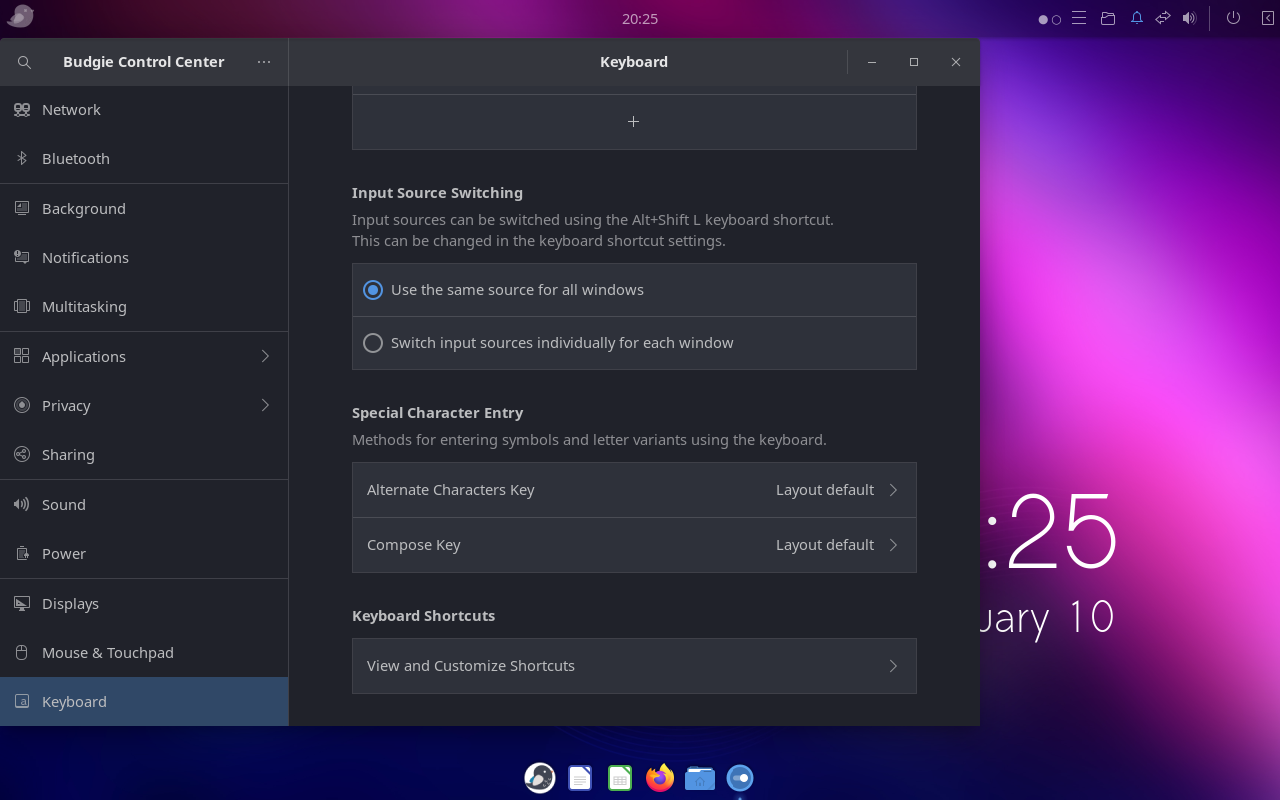
Toggle the “Use layout default” off and then select which key you would like to use as your Compose key.
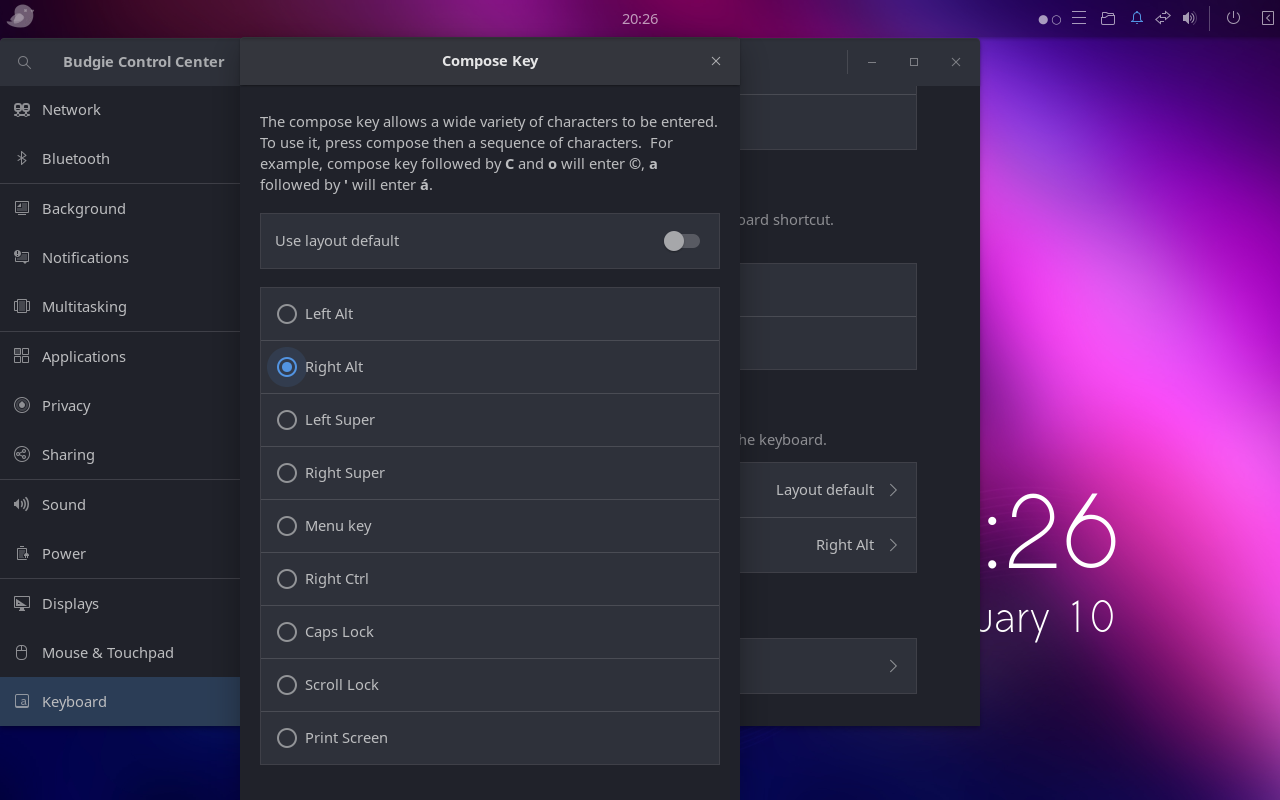
After this all your apps should now support the Compose key without requiring you to logout, restart, et cetera.
XFCE
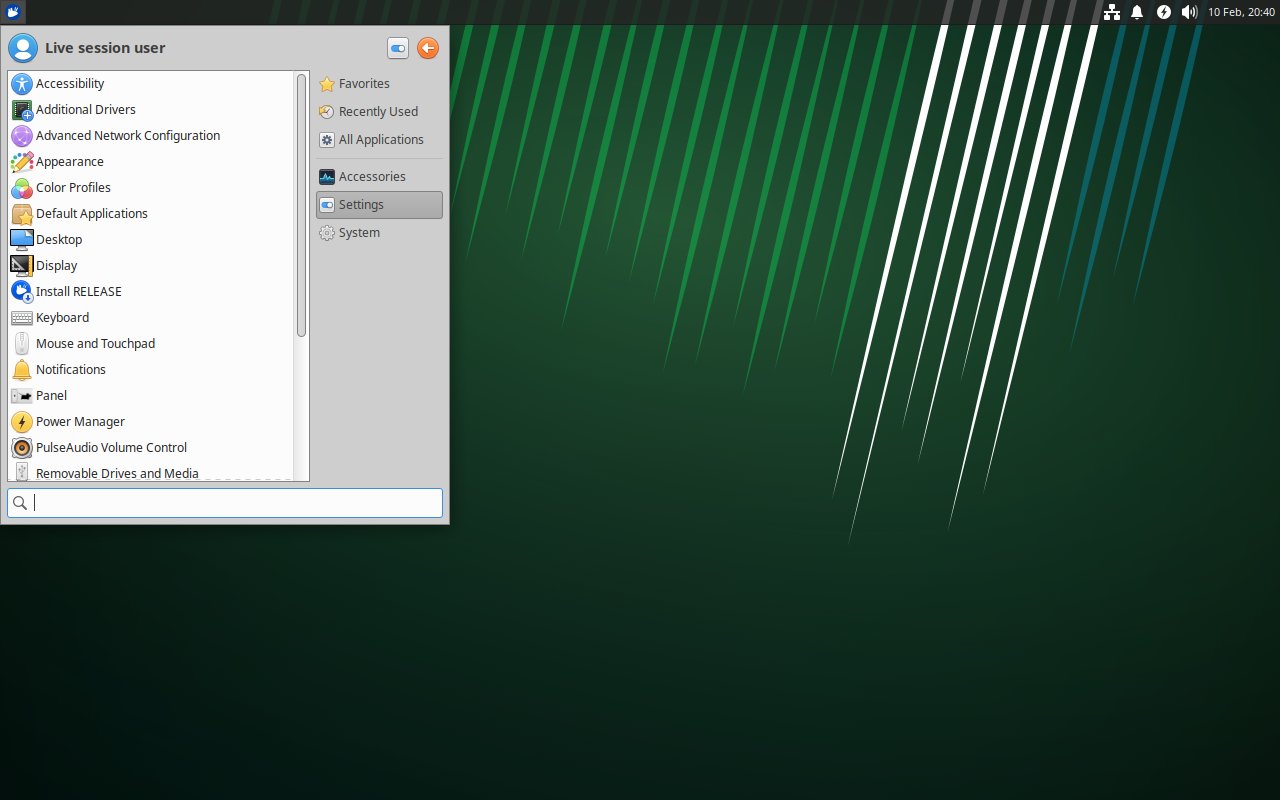
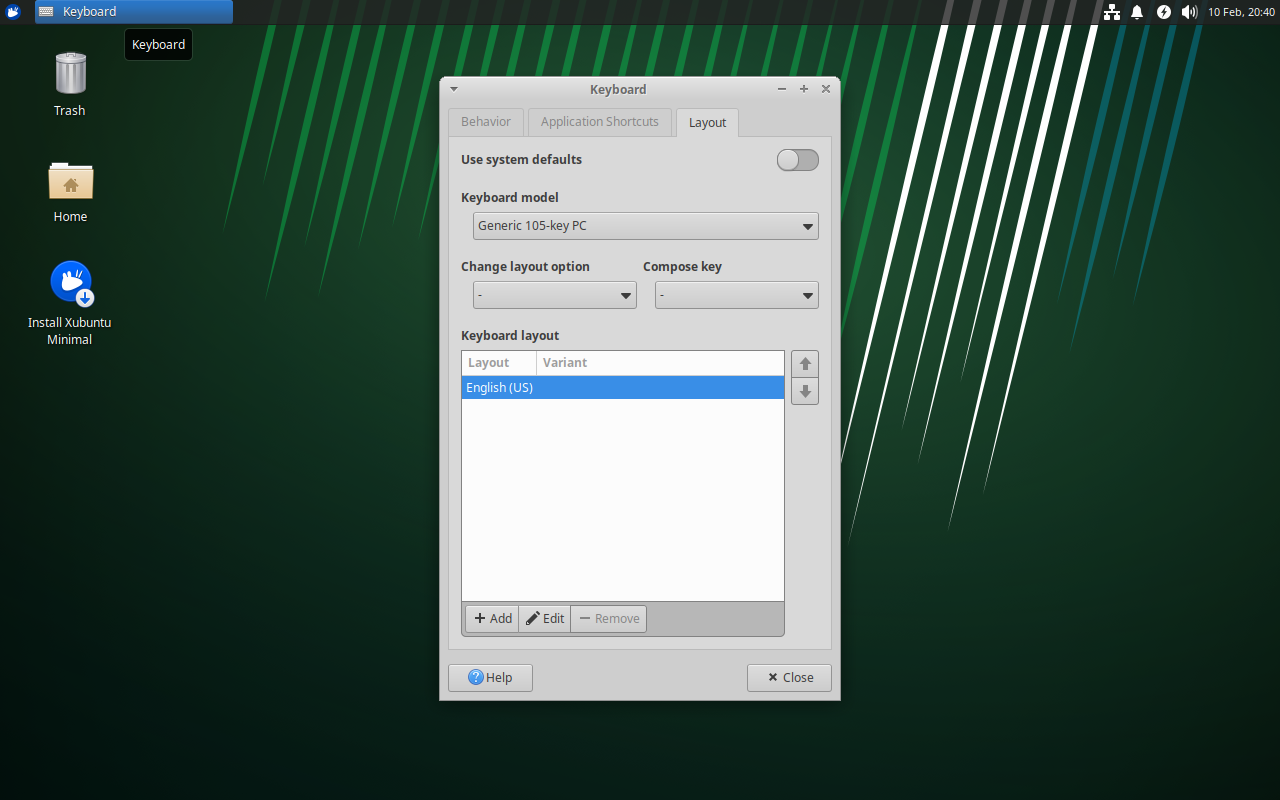
From the main menu click on the Settings menu item. This will show a list of settings option in the main menu’s list view. Select the Keyboard option to bring up the Keyboard preferencs app.
From the Keyboard Preferences app select the Compose Key option you desire from the drop down menu
LXQT
Unfortunately LXQT has no user interface control that allows for setting compose keys. This has to be done with the X-Windows configuration. To do this permamently you will want to edit the /etc/default/keyboard file to add XKBOPTIONS for the compose key. [https://duncanlock.net/blog/2013/05/03/how-to-set-your-compose-key-on-xfce-xubuntu-lxde-linux/](This post) describes the various options available. A screenshot of the edited file as an example is below:
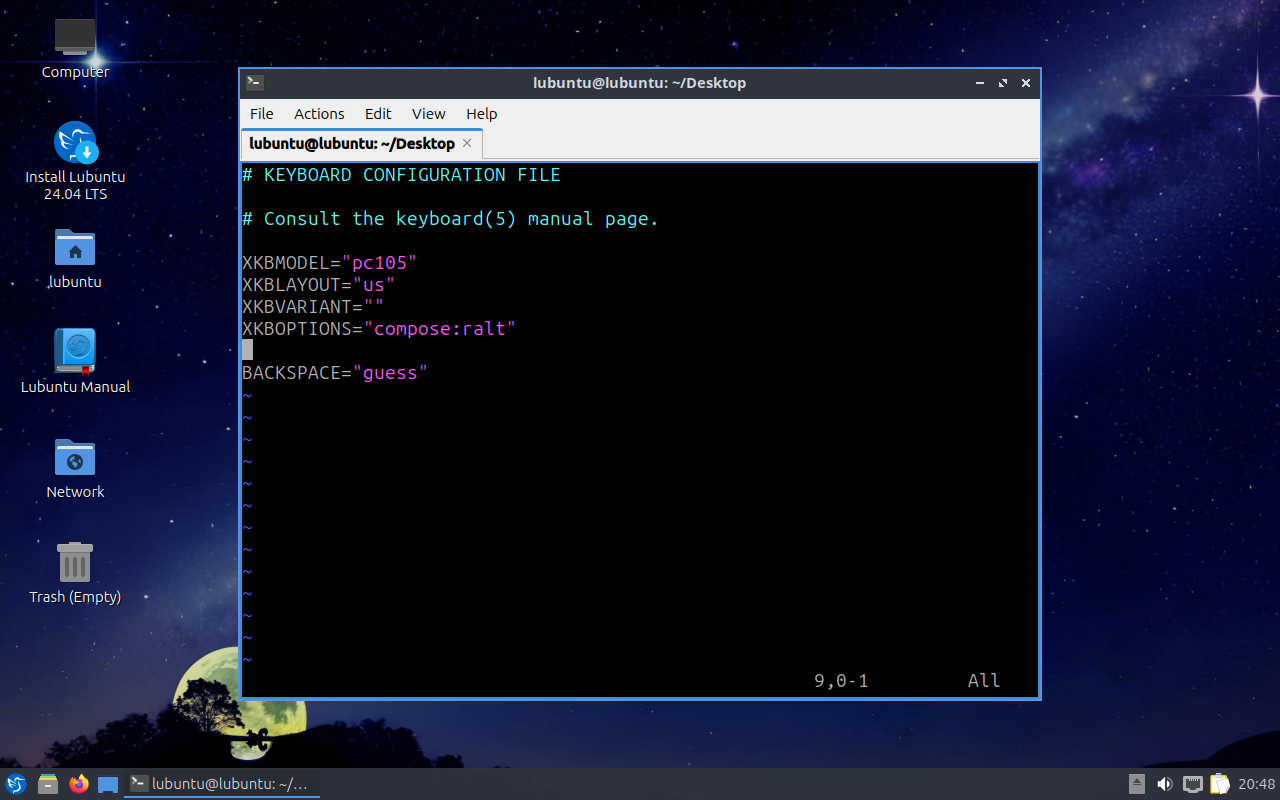
It is also possible to do it temporarily by executing the setxkbmap -option command from the command line with the same options
Sources
The below sources were helpful in researching this post:
https://ladedu.com/how-to-enable-and-set-the-compose-key-on-linux/
https://duncanlock.net/blog/2013/05/03/how-to-set-your-compose-key-on-xfce-xubuntu-lxde-linux/
https://cgit.freedesktop.org/xorg/lib/libX11/plain/nls/en_US.UTF-8/Compose.pre
https://gist.github.com/imasaru/25e0dbbca037ae6ab4c2e757b71c88be