






 2026-03-24
in
2026-03-24
in

 4 min read
I like having some estimate of how good my unit tests are covering my code. That is especially true for libraries I publish for others to use. I’m making some updates and upgrades to my Dart Result Monad library . I had to dust off my knowledge of doing code coverage in Dart since it had been awhile. It is relatively straightforward to generate these statistics for your Dart and Flutter projects using a couple of tools found in the pub.dev ecosystem. However it took me a couple of trial and error iterations to get the cobwebs out. So I decided to document it here.
Performing a code coverage analysis requires simply adding The Coverage package to your project. This is an optional coverage tool published by the Dart Tools team. To install the package on your computer simply run the command:
dart pub global activate coverage
Now you are ready to generate coverage reports when you run your unit tests on your project. For a Dart project you execute the command:
dart pub global run coverage:test_with_coverage
For a Flutter project you run:
flutter test --coverage
These commands will generate a coverage folder within which you will find an lcov.info file with the coverage results. LCOV
is a tool originally written by the Linux Kernel team but has grown to be used throughout software development everywhere. The lcov.info file isn’t especially interesting to read for humans. For example, the top of it for me Result Monad project reads:
SF:/home/user1/dev/dart-result-monad/lib/src/future_result_extensions.dart
DA:7,2
DA:9,2
DA:12,1
DA:14,1
DA:17,2
DA:20,1
DA:21,1
DA:24,1
DA:25,1
...
But with a little post processing you can get some decent looking human consumable results. One good tool for this is the Flutter Coverage Report (FCR) tool. It works for both Flutter and Dart projects. It is written in Dart so it runs on every system that is supported for Dart/Flutter development. You install it in the same way we did the Dart Coverage tool:
dart pub global activate flutter_coverage_report
It is now possible to generate a self-contained HTML summary file of the report using the fcr command on the command line:
fcr coverage/lcov.info
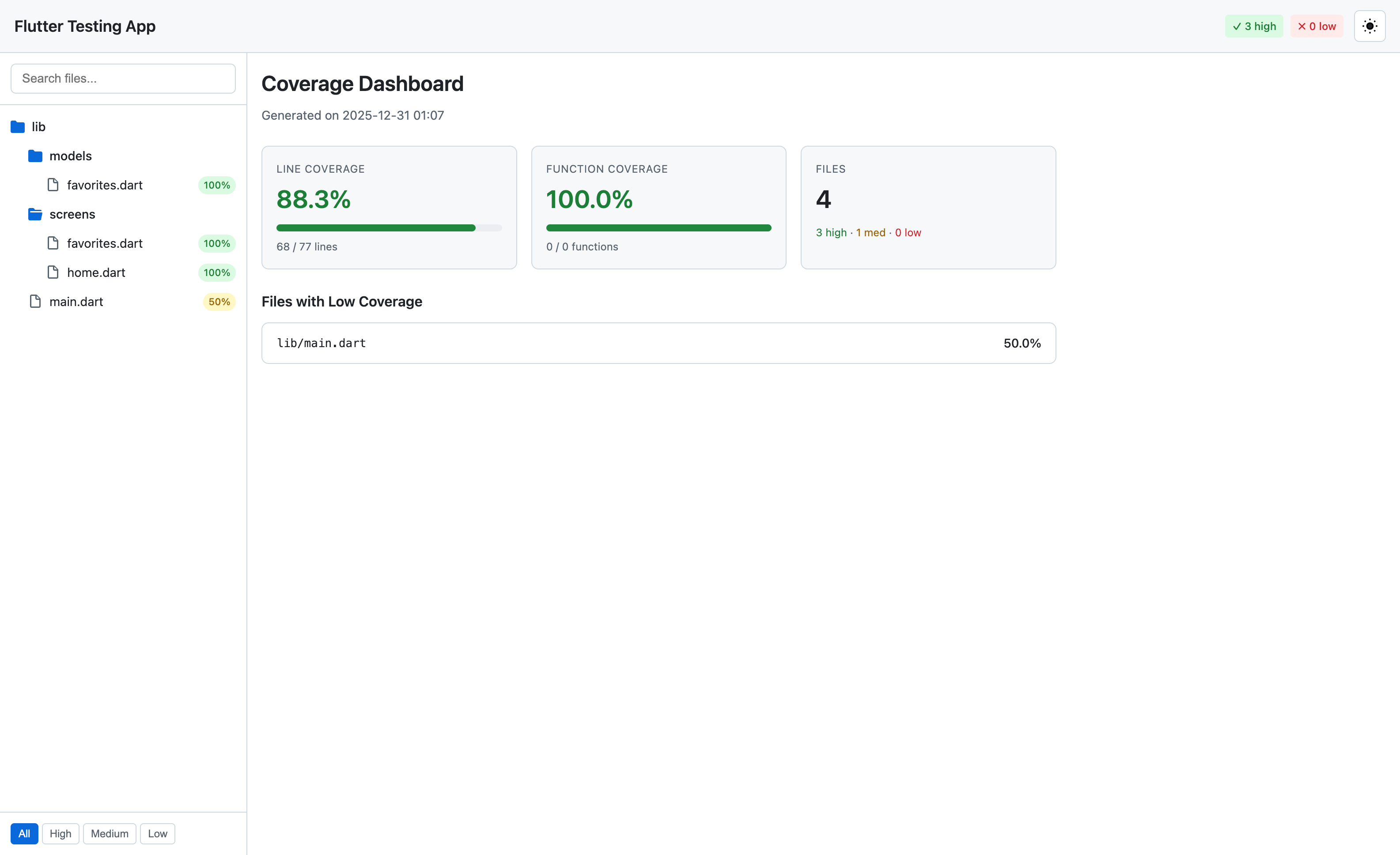
The corresponding HTML file for the project looks like:
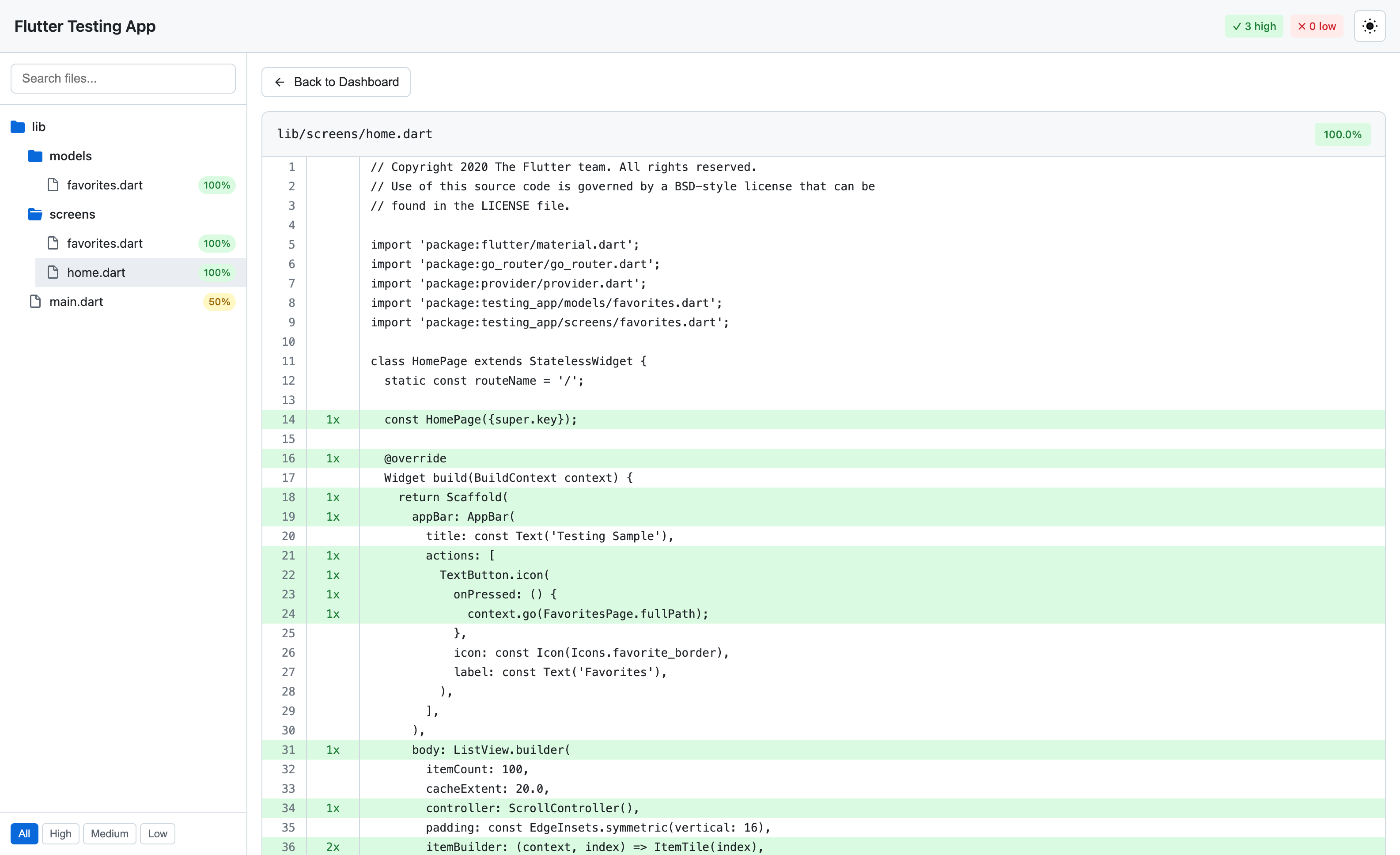
This lets you drill down into each file to see which lines do and don’t have proper coverage as well.
Another system for generating a similar report is to use LCOV itself. It has a tool named genhtml that does a similar thing as the above FCR tool, albeit with a more archaic looking HTML format but with some additional features. LCOV is available on all Linux systems, macOS through Homebrew
, and some projects to get it working on Windows (but none I can vouch for).
To install it on a Debian or Ubuntu based Linux it’s as simple as:
sudo apt install lcov
or on Mac:
brew install lcov
Once installed and the coverage analysis file is generated, one can execute the genhtml command to generate the corresponding report:
genhtml coverage/lcov.info -o coverage/html
This produces a series of HTML files and in a subdirectory that can then be navigated to with a root index.html file:
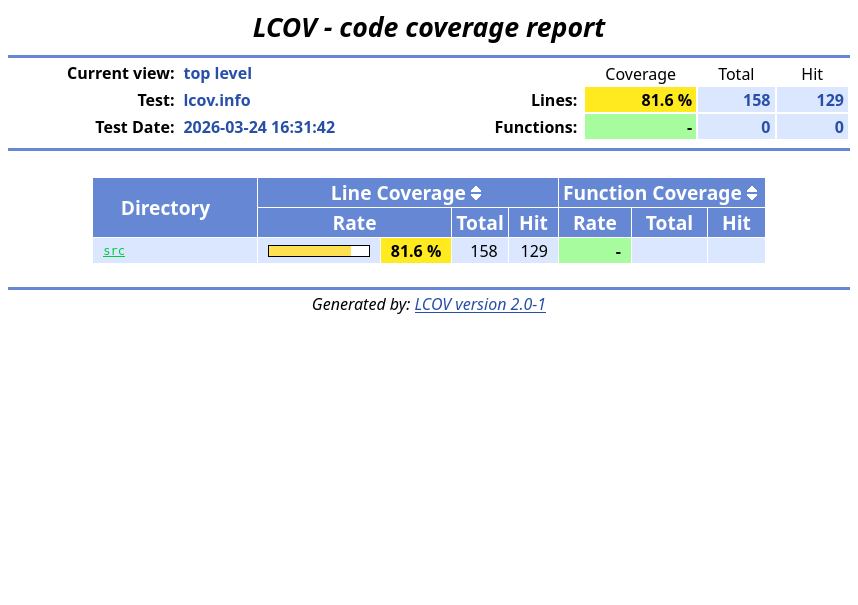
As one can see in terms of the content it is very similar to the FCR report. However, one thing LCOV’s format has going for it is that it shows a roll up of the percent coverage of everything in the sub-directory. I can’t figure out a way to get FCR to do that. A downside of the LCOV presentation style is that you can’t look at the whole project hierarchy at once. We can drill down into the directories and files though. If we click on the src link we can see what the breakdown is in the sub-directory:
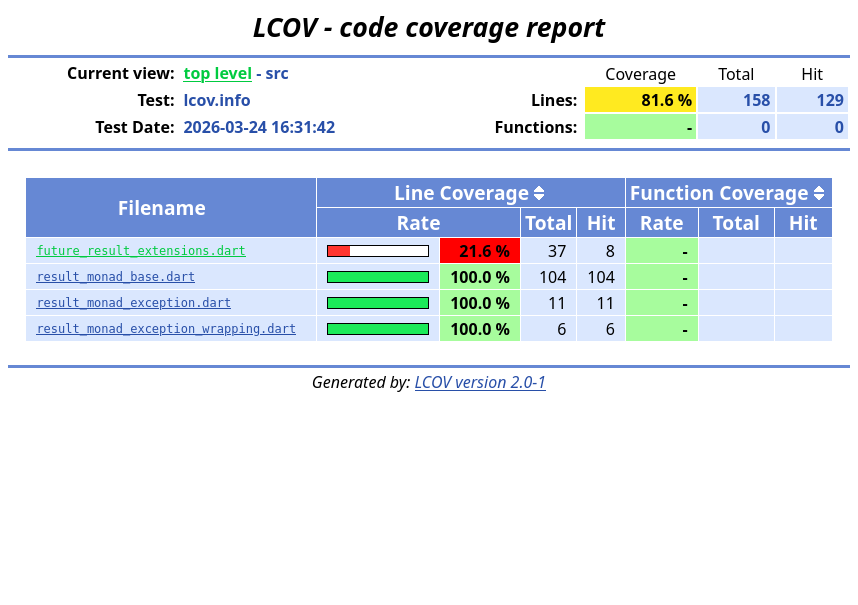
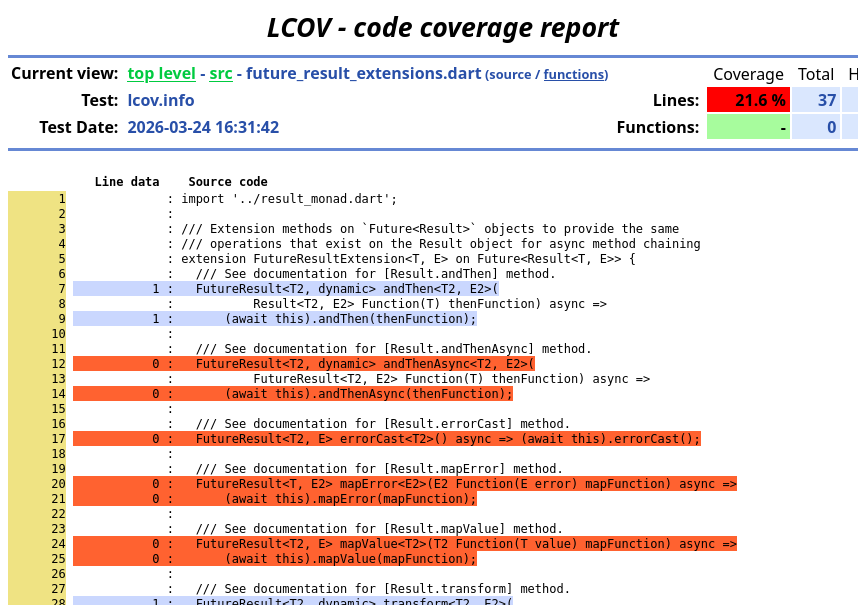
For this particular example I commented out the entire test suite for FutureResult so it only got whatever parts of the source code were touched in other tests. If we look at the source file itself we can see which lines were covered and which ones weren’t, just like in the FCR drill down:
If one is using this on a platform that supports LCOV it is really user’s choice. Because getting LCOV running on Windows may be difficult, although with WSL maybe not anymore, at least there is an option to do it with pure Dart implementations with FCR.